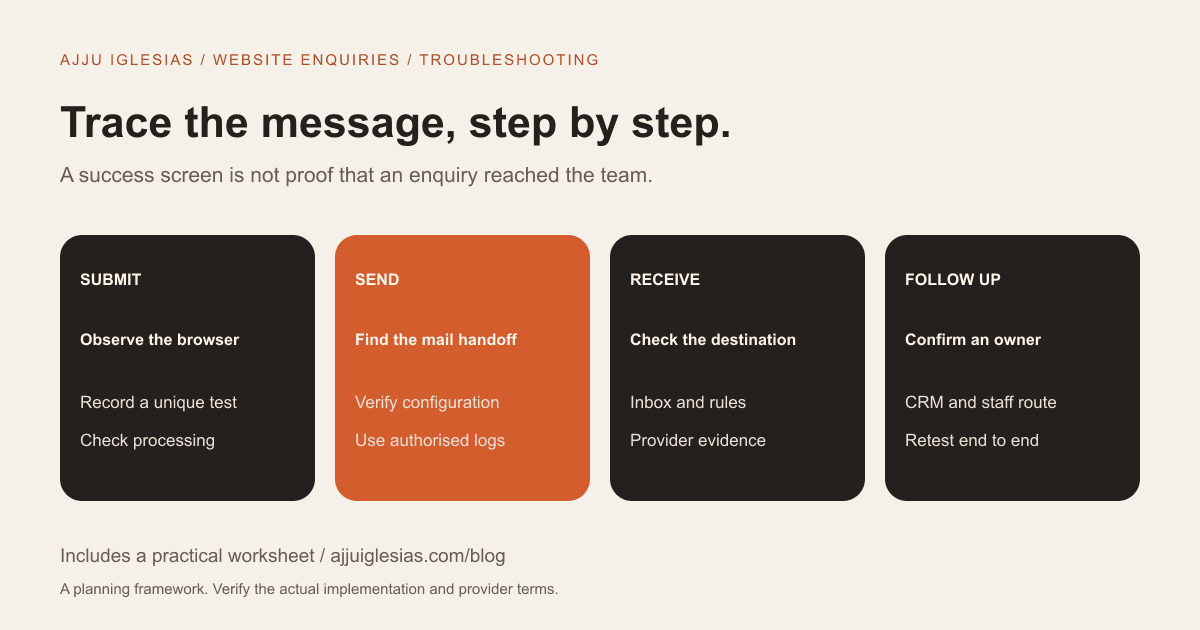
If your contact form appears to submit but no enquiry reaches the business, trace the request through its separate stages: browser submission, website processing, any stored record, email handoff, recipient delivery and staff follow-up. A success message on the page does not prove that every stage completed.
This guide helps a business owner gather useful evidence and coordinate a fix with the website developer, host or email provider. It is not a request to make random DNS changes or install several competing mail plugins.
Use the contact-form delivery worksheet to record one controlled test at a time. The same investigation structure applies broadly, while plugin-specific details must be checked against the system actually installed.
Record the exact problem
Write down the page URL, the time observed, the device used and what happened on screen. Distinguish “the submit button does nothing,” “the website shows an error,” and “the site says success but the message is missing.”
Ask whether the problem affects every form or one particular route. A newsletter subscription, a quote request and a booking enquiry may use different systems even when they look similar.
Also record when messages last arrived reliably and any known changes: a redesigned form, new hosting, an altered recipient address or a new spam-control configuration.
This information prevents a support conversation from starting with an assumption that the email inbox is always the cause.
Make one identifiable test
Submit a realistic test using information you are authorised to use. Put a unique, non-sensitive reference in the message so the team can distinguish it from other enquiries.
Record the time and expected destination. Avoid repeatedly submitting the same message without notes; several similar tests make it harder to understand which change affected which result.
If the form sends automatic replies or connects to a CRM, tell the relevant team before testing. Use test environments or approved procedures for workflows that can trigger payments, bookings or customer campaigns.
The purpose is to observe the real path, not to generate activity that the business might mistake for a customer request.
Check the browser stage
Does the form show a useful validation message when a required field is missing? Does a valid submission produce an error, a confirmation or no response?
Try the same journey on a phone and in a suitable clean browser session. Record differences without assuming that a particular browser extension or cached page is the cause.
A developer can inspect the request and application response. As a business owner, you can provide the visible result, time and test reference instead of sharing a screenshot containing private customer data.
If the browser request never completes, investigate that stage before changing recipient settings. Mail configuration cannot repair a button that does not submit the intended request.
Check website processing
The application needs to receive and validate the request before it can deliver a notification. Ask the developer whether the test reached the expected handler and what result was recorded.
Spam checks, invalid configuration, an application error or an integration problem can interrupt processing. The evidence should identify the stage rather than simply label every failed request “spam.”
Keep a record of the relevant non-sensitive error or request identifier. Do not publish logs that contain message bodies, credentials or customer contact details.
When a failure happens only under certain conditions, record the smallest reliable example. A long message, an attachment or a particular choice in a form may expose a different path from a basic test.
Find out whether enquiries are stored
Some forms keep a submission record; others primarily send email. Do not assume a database entry exists unless the implementation includes one.
Ask where successful submissions are recorded, who can access them and what happens when a notification fails. Storage and email delivery are separate responsibilities.
A retained record can help distinguish a lost notification from a request that never reached the application. It also needs an appropriate retention and access arrangement.
If there is no stored record, do not promise that historical missing messages can be recovered. Check the actual available logs and systems before making claims about what can be restored.
Separate sending from receipt
A website can hand a message to a mail-sending system without proving it reached the intended inbox. WordPress's official wp_mail documentation explicitly notes that a true return value is not confirmation of successful receipt by the user.
That distinction matters when a plugin reports success. The result may describe one stage of the process, not the recipient's final view.
Ask which service sends the notification and whether it provides an authorised activity record. A request identifier or provider event can help the relevant support team investigate.
Do not treat analytics as delivery evidence either. A recorded submit event can show that a tracked action occurred while the business still receives no usable enquiry.
Verify recipient and sender settings
Confirm the intended destination address and any routing rules in the form. Look for an old team inbox, a spelling mistake or a conditional route that sends one category elsewhere.
The sender address has a different role from the customer's contact address. In Contact Form 7, the official mail-setup documentation instructs users to use a From address on the website's domain. Its configuration guidance also explains valid mailbox syntax.
Ask the developer to check the installed plugin's supported method for replies. Do not copy a customer's address into every sender field simply because it looks convenient.
After a configuration change, run a new identified test and record the result. Changing several settings at once makes it harder to know what resolved the issue.
Review the sending service
Identify whether the site uses the host's sending mechanism or a configured email-delivery provider. Ask who owns that account, whether it is active and whether the website has the required authorised configuration.
A mail plugin or API connection is not a universal fix by itself. It needs a working account, correct configuration and a clear responsibility for renewal and monitoring.
Provider activity may show that a message was accepted, deferred, rejected or otherwise processed. Interpret those events using that provider's documentation rather than assuming every status means final inbox delivery.
Give the sending provider the relevant time, destination domain and request identifier through an appropriate support channel. Avoid sending credentials or unnecessary customer message contents.
Check domain authentication carefully
Email services use authentication signals to evaluate messages. Google's Gmail sender guidance sets requirements involving SPF or DKIM, and additional requirements for bulk senders; it recommends using SPF, DKIM and DMARC appropriately.
Ask the person responsible for your domain and sending provider to verify the actual configuration. Copying a generic DNS record from an unrelated tutorial can affect existing legitimate mail services.
The review should consider all authorised senders and the provider's current instructions. It should not be reduced to adding a record because a plugin displays a warning.
Keep DNS changes documented and tested by the responsible administrator. This is a configuration review, not a guarantee that authentication alone will put every message in the inbox.
Inspect the recipient side
Check spam and junk folders, mailbox rules, forwarding, quarantine and the correct shared inbox. Confirm that the person checking has access to the actual destination, not just a similarly named account.
A message may arrive but be moved, forwarded or hidden from the team's normal view. Record what the recipient provider shows for the identified test.
Testing an additional authorised destination can help narrow the investigation, provided it is part of a controlled plan. Do not scatter real customer enquiries across personal accounts as a workaround.
If the message reaches one destination but not another, give that evidence to the relevant provider. It identifies a difference to investigate; it does not automatically prove which party is at fault.
Trace the final staff handoff
Receiving an email is not the final business outcome. Someone must see the request, assess it and take the next action.
Check shared-inbox assignments, CRM imports and internal notifications. A message delivered successfully can still be missed if the business assumes another person owns it.
Record whether the test appears in each agreed system and who handles it. If a CRM connection fails while email works, that is a different issue from an email-delivery failure.
For the broader relationship between traffic, enquiries and follow-up, see why websites get visits but few enquiries.
Restore a usable contact route
If the primary form is failing, provide a tested alternative contact method while the investigation continues. Make sure the alternative is accurate, monitored and usable on a phone.
Do not leave visitors with a confirmation that promises a response when the team knows requests are not reaching it. The public message should reflect what the site can currently support.
An alternative route is a temporary business measure, not evidence that the underlying form is fixed. Keep the original issue and owner visible until it has passed an end-to-end test.
Where a problem follows a recent launch or migration, use the migration checklist to review changed integrations and notification destinations.
Confirm the fix end to end
After the proposed correction, submit a fresh identified enquiry through the public page. Confirm the visitor result, any intended stored record, notification delivery and staff assignment.
Repeat the important variations that previously failed, using appropriate test inputs. A basic enquiry passing once does not verify an attachment or conditional route that takes a different path.
Record what changed and what evidence supports closing the issue. If the cause remains uncertain, label it instead of writing an unsupported root-cause explanation.
Add the critical contact route to your ongoing maintenance checks. Choose a practical check schedule and a person who receives failure reports.
A useful support request
Send the affected URL, observed time and time zone, non-sensitive test reference, browser result, expected destination and the last known working period.
Explain what has already been checked and what remains unknown. Include relevant provider identifiers through the appropriate channel, without attaching credentials or unnecessary customer data.
If you need help investigating the website side, send your site and a description of the failed journey. A scoped review of the support requirements can then identify which systems and providers need involvement.
Sources and boundaries
Technical references checked on 15 October 2026:
- WordPress wp_mail reference explains the limits of a successful send result.
- Contact Form 7 mail setup describes its recipient and sender fields.
- Contact Form 7 mailbox syntax explains related configuration errors.
- Gmail sender guidance documents its authentication and delivery requirements.
The investigation sequence is an editorial coordination tool. Exact logs, settings and remediation depend on the form, host, email provider and recipient system in use.